Release Check
Der Flow
Überblick
A QA app, built with Build with AI, that decides whether a new build of a web product ships. Testers keep suites of test cases in plain English, each step with the text that should be on the page afterwards, and import them from a CSV. The robot runs every case in a fresh browser: it resets the staging data, signs in, and the Browser Act node does each step while Jev, TypeSafe's decision model on OpenRouter, picks every click. Code checks the expected text, never the model. A failure runs once more from a clean start: failed twice is Failed, passed the second time is Flaky, never Passed. The report says Ship or Hold, with a bug report and a screenshot for every failure and a JUnit file for the build pipeline. Results live in SQLite.
Release Check
Release Check is a QA app for a software company testing its own web product before a release. It is a Robomotion App: screens in front, a flow behind them, and a robot that does the testing. It was built in the Designer with Build with AI, in three prompts: the screens, the robot that runs the tests, and the report.
The testers already have their test cases in a spreadsheet. Each case is a few numbered steps in plain English, and each step names the text that should be on the page afterwards. Release Check imports that CSV, runs every case against a staging build, and says Ship or Hold. The example suite tests Quillmoth Billing, a fictional invoicing product for small agencies, across three release candidates: the first passes all nine tests, the second fails the discount test and has a flaky customer save, and the third fixes the bug.
Watch the video
What Release Check can do
- Keep suites of test cases, each tied to the staging address it tests, and import cases from a CSV
- Add, edit and remove cases on the page: plain-English steps, with anything to type written in quotes
- Run a suite against a build: a fresh browser for every case, the staging data reset, a plain browser sign in, and each step done by the Browser Act node, with no selector anywhere in the suite
- Check every expected result in code, from the page's own text, never from the model's opinion
- Run a failed case once more from a clean start: failed twice is Failed, passed the second time is Flaky, never Passed
- Keep a screenshot of every step, so a pass is something you can go and look at
- Show a report for each run: Ship or Hold, passed/failed/flaky counts, the pass rate against the previous build, what this build changed, and a card for every failure with the expected text, what the page said and its screenshot
- Copy a bug report for a failure, and download the run as JUnit XML for the build pipeline
- Keep everything in SQLite on the robot: suites, cases, runs, steps and releases
Behind the scenes
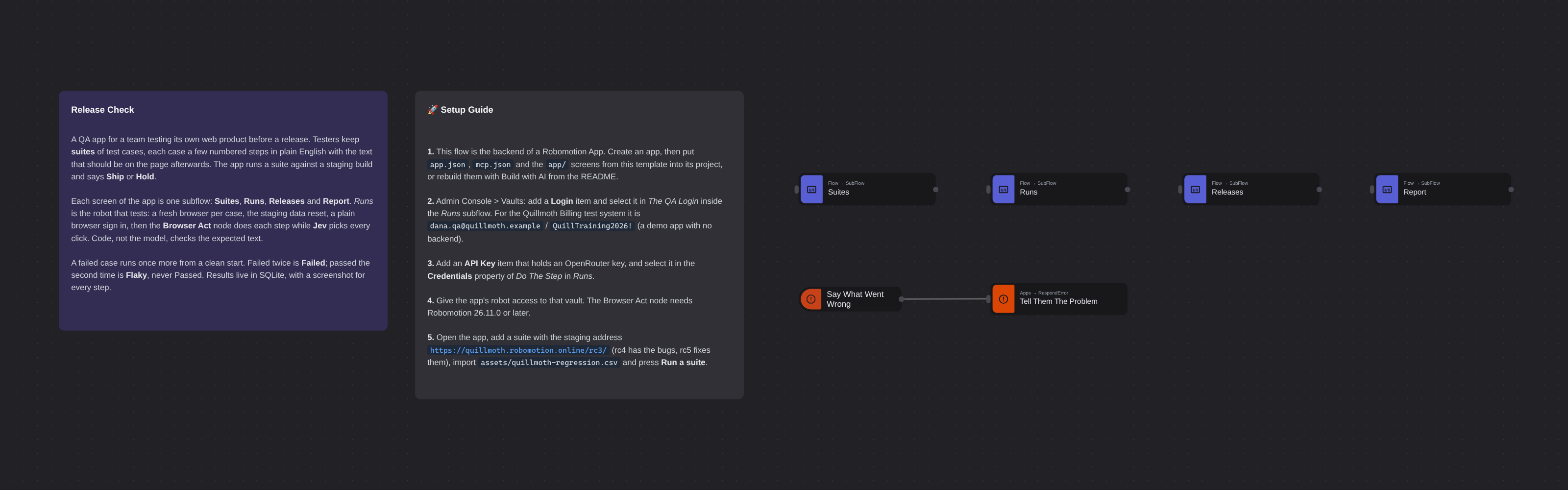
The main canvas is one SubFlow per screen, Suites, Runs, Releases and Report. Each subflow starts with the Apps Action nodes the screen calls, such as listSuites, saveCase, importCases, runSuite and getReport, from the contract in app.json. An error anywhere goes to Say What Went Wrong, and Tell Them The Problem sends it back to the screen that asked.
Runs is the robot that tests. Run Suite reads the suite and its cases out of SQLite, reads the QA login from the vault and makes a screenshot folder for the run. Then a GoTo loop goes through the cases. For each attempt it opens a fresh browser on <staging address>/reset, which puts the demo data back, and signs in with ordinary browser steps (type the email, type the password, click Sign in). It reads the build number off the page footer.
Every step becomes the goal of a Browser Act node, Do The Step. Its Decision Model is Jev (typesafe/jev-1.14), TypeSafe's decision model on OpenRouter, which picks every click. A Text Model (deepseek/deepseek-v4.1-flash-1017) writes free text when a step needs it. Quoted words in a step, like "Ottervale Design", are handed to the node as Values, so the model chooses the exact text "Ottervale Design" and the robot types it. Min Confidence is 0.4. After the node, a script reads document.body.innerText and checks that the step's expected text is there, and Take A Screenshot saves the page. The model saying it is done does not make a step pass. Only the text on the page does.
A case whose first attempt fails gets one more attempt from a clean browser and reset data. The result is Passed, Failed (failed both times) or Flaky (failed, then passed). The run has an attempt budget of two per case, so a broken build cannot loop. The run, every step, what the page said and the screenshot paths go into SQLite. Report builds the verdict from the newest run, or from the one you open: Ship when nothing failed, Hold otherwise. It also builds the comparison with the previous build and the failure cards, and it attaches each failure's screenshot to the page.
Setup Guide
- Make the app. This template is the flow behind a Robomotion App. Create an app in the Designer, then put this template's
app.json,mcp.json,src/andapp/into its project next tomain.tsandsubflows/. You can also rebuild the screens with Build with AI from the description above. The app needs the Robomotion.Apps and Robomotion.SQLite packages. - Add the QA login. In Admin Console > Vaults, add a Login item and select it in The QA Login inside the Runs subflow. Quillmoth Billing is a test system for this flow, a single-page app with no backend, and its QA account is username
dana.qa@quillmoth.example, passwordQuillTraining2026!. For your own product, use its QA account. - Add an OpenRouter key. Put an OpenRouter API key into a Vault item (type: API Key) and select it in the Credentials property of Do The Step in Runs. Its Provider (OpenRouter), Decision Model (
typesafe/jev-1.14) and Text Model are already set. - Give the app's robot access to that vault. The Browser Act node needs Robomotion 26.11.0 or later on the robot.
- Run it. Open the app, add a suite with a staging address: Quillmoth has three builds,
https://quillmoth.robomotion.online/rc3/(passes),/rc4/(a discount bug and a flaky customer save) and/rc5/(fixed). Then importassets/quillmoth-regression.csv(or your own file with the columnscase,step,action,expected) and press Run a suite. The run dialog says which case it is checking, the run lands on the Runs screen when it ends, and Report says Ship or Hold.
Customization
Write the cases the way you would write them for a person. One action per step. Put anything to type or pick in quotes, and leave link and button names unquoted. The expected text should be something that only shows when the step worked, like Subtotal €1,800.00, not something that is always on the page.
Point it at your product by changing the suite's staging address. The runner expects two things of the site: a /reset page that puts the test data back, and a sign-in form. If your staging site resets differently, change Open The Reset Page. The sign-in nodes in Runs find the email and password fields and the submit button by their type, so most forms work as they are. Wait For Welcome Back waits for Quillmoth's own greeting, so change its text to something your signed-in page always shows.
Tune the gate in Do The Step's Min Confidence. Below it the node touches nothing and the step fails with the reason, which is the right outcome for a test. Max Steps (25) bounds how many moves one step may take.
Decide what blocks a release. The verdict is ship: failed === 0 in Build The Report, so a flaky test does not hold a build but is always shown. Make it stricter there if your team wants flaky tests to block.
Feed your pipeline. The JUnit download on the report is plain JUnit XML, with one <testcase> per case and a <failure> that carries the expected and found text, so a CI system can read it as it is.
Weitere Vorlagen der Kategorie AI
Alle 12 ansehen →- Book Shipments in Plain EnglishBooks a morning's shipments on a carrier website that has no API, from six numbered steps written in plain English. The Browser Act node follows the steps page by page: it reads what is on the screen, and Jev, TypeSafe's decision model on OpenRouter, picks every next move, including which service each customer's note asks for. No step names a button or a field. Jev never writes text, so its output tokens cost nothing, and below a confidence of 0.55 the robot touches nothing and hands the order to a person. Every booking is proven in code before it counts: a new tracking number, on a page that names that order.
- Website Pitch BuilderFinds a shop that has no website and builds it one. Google Maps is searched through the scrape.do API, the listings are filtered down to businesses with a phone, enough reviews to prove they have customers, and no real site of their own - a Facebook page or a Wix subdomain counts as no site - and the best one is scored out. Its opening hours, ten best reviews and four public domain photographs are gathered, and a DeepSeek Agent writes a single self-contained page from that brief and nothing else. A real browser then photographs the page, and the screenshot and a CSV row are mailed to you. Google Maps has no email column, so the packet comes to you with the shop's phone number in it, and a person makes the call.
- Clinic Support AssistantA customer support assistant for a website, served to the page as one MCP tool. A visitor and a signed-in patient are answered by two different Hermes Agents, and the difference is not a prompt or a flag, it is two wires: the visitor's agent is wired to the practice documents and to nothing else, so nothing on that side of the canvas can reach a patient record whatever the model is asked. The signed-in tools take no arguments at all. They read the record number the website established from a session cookie, so the model cannot name a patient, and every turn is written to a dialog log the practice can read in the morning.
- Conversational Order AssistantA conversational chat assistant that takes a return in whatever order the customer explains it. An LLM Agent asks for whatever is missing, and an ordinary automation wired to its tools port looks the order up mid conversation and hands the answer back.
- Guided Returns DeskA guided chat assistant that opens a product return, one question at a time. Uses Chat Assistant widget nodes for the questions, checks the order number while the customer is still in the conversation, and loops back to the question when it does not recognise one instead of throwing an exception.
- Knowledge Base EndpointAsk your own documents a question over HTTP. A Robomotion Knowledge Base is indexed by a workspace agent on your machine and searched locally by the robot; one Query Knowledge Base node returns the passages that answer a question, each with the document and heading it came from. Http In and Http Out turn the flow into a service anything can call, and a Min Score fence means it answers "I could not find that" instead of inventing something. Ships four sample documents and a thirty-line Python client.