Calorie Coach Agent
The flow
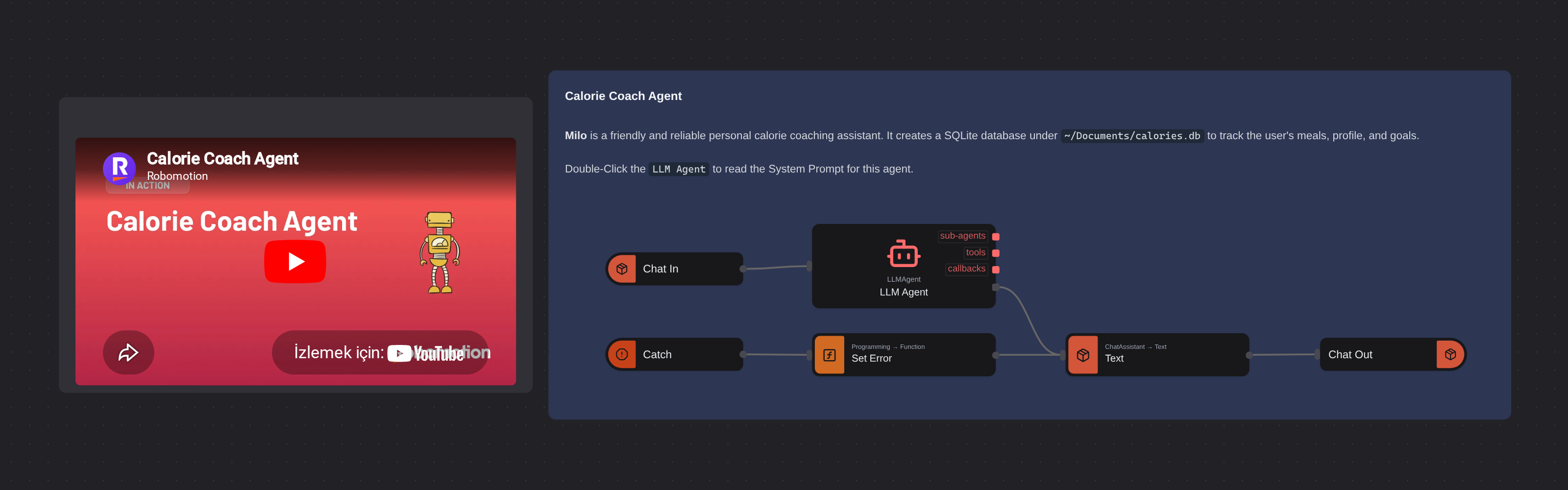
Overview
A personal nutrition tracking assistant powered by Chat Assistant and LLM Agent nodes. Uses a SQLite database to log meals, manage user profiles, and track daily calorie and macro goals through a natural conversational interface with support for photo-based food logging.
Calorie Coach Agent
Calorie Coach Agent is a personal nutrition tracking assistant powered by Robomotion's Chat Assistant and LLM Agent nodes. It uses a SQLite database to log meals, manage user profiles, and track daily calorie and macro goals, all through a natural conversational interface.
Whether you want to track your daily food intake, monitor your macros, or get quick meal summaries, this template gives you a fully functional calorie coaching chatbot that learns your profile and keeps a running food diary.
What Calorie Coach Agent can do
- Track meals via text descriptions or photo analysis
- Store user profiles with personalized calorie and macro goals
- Log food entries with calories, protein, carbs, fat, and portion sizes
- Provide daily and weekly intake summaries against your goals
- Guide new users through an onboarding flow to set up their profile
- Correct or delete previously logged food entries
- Suggest remaining calorie budgets and meal options
Behind the scenes
The flow listens for incoming messages through the Chat In node. Each message, along with any attached food photos, is forwarded to the LLM Agent node named Milo, which acts as a friendly calorie coach. Milo uses the SQLite skill to maintain a local database at ~/Documents/calories.db with tables for user profiles and food logs. On first interaction, Milo walks the user through an onboarding conversation to collect their name, age, weight, height, activity level, and calorie goal. Once the profile is set up, users can log meals by describing them in text or sending photos, and Milo estimates the nutritional values and stores them. If an error occurs at any point, a Catch node intercepts it and returns a friendly error message instead of failing silently.
Setup Guide
- Configure Credentials: Use Robomotion AI Credits (default) or set up your own API keys in the Vault for a Bring Your Own Key (BYOK) configuration.
- Version & Publish: Create a new version of this flow and Publish it to make it available for deployment.
- Create Agent: Navigate to the Admin Console > Agents screen, create a new agent, and select this flow and its published version.
- Install Desktop App: Download and install the Robomotion Desktop App from robomotion.io/downloads and log in to your workspace.
- Locate Agent: Refresh your robot list in the Desktop App to find the newly created agent for this flow.
- Connect & Start: Connect the robot and press the Play button to start the agent.
- Launch Chat: Return to the Agents screen in the Admin Console, find your agent, and click the Open button to start chatting.
Customization
Double-click the LLM Agent node to update the System Prompt, adjust the coaching personality, modify the database schema, or change the default calorie and macro goals. You can also add additional skills beyond SQLite to extend the agent's capabilities.
More ai templates
See all 11 →- Book Shipments in Plain EnglishBooks a morning's shipments on a carrier website that has no API, from six numbered steps written in plain English. The Browser Act node follows the steps page by page: it reads what is on the screen, and Jev, TypeSafe's decision model on OpenRouter, picks every next move, including which service each customer's note asks for. No step names a button or a field. Jev never writes text, so its output tokens cost nothing, and below a confidence of 0.55 the robot touches nothing and hands the order to a person. Every booking is proven in code before it counts: a new tracking number, on a page that names that order.
- Website Pitch BuilderFinds a shop that has no website and builds it one. Google Maps is searched through the scrape.do API, the listings are filtered down to businesses with a phone, enough reviews to prove they have customers, and no real site of their own - a Facebook page or a Wix subdomain counts as no site - and the best one is scored out. Its opening hours, ten best reviews and four public domain photographs are gathered, and a DeepSeek Agent writes a single self-contained page from that brief and nothing else. A real browser then photographs the page, and the screenshot and a CSV row are mailed to you. Google Maps has no email column, so the packet comes to you with the shop's phone number in it, and a person makes the call.
- Clinic Support AssistantA customer support assistant for a website, served to the page as one MCP tool. A visitor and a signed-in patient are answered by two different Hermes Agents, and the difference is not a prompt or a flag, it is two wires: the visitor's agent is wired to the practice documents and to nothing else, so nothing on that side of the canvas can reach a patient record whatever the model is asked. The signed-in tools take no arguments at all. They read the record number the website established from a session cookie, so the model cannot name a patient, and every turn is written to a dialog log the practice can read in the morning.
- Conversational Order AssistantA conversational chat assistant that takes a return in whatever order the customer explains it. An LLM Agent asks for whatever is missing, and an ordinary automation wired to its tools port looks the order up mid conversation and hands the answer back.
- Guided Returns DeskA guided chat assistant that opens a product return, one question at a time. Uses Chat Assistant widget nodes for the questions, checks the order number while the customer is still in the conversation, and loops back to the question when it does not recognise one instead of throwing an exception.
- Knowledge Base EndpointAsk your own documents a question over HTTP. A Robomotion Knowledge Base is indexed by a workspace agent on your machine and searched locally by the robot; one Query Knowledge Base node returns the passages that answer a question, each with the document and heading it came from. Http In and Http Out turn the flow into a service anything can call, and a Min Score fence means it answers "I could not find that" instead of inventing something. Ships four sample documents and a thirty-line Python client.