Internship Application Intake
The flow
Overview
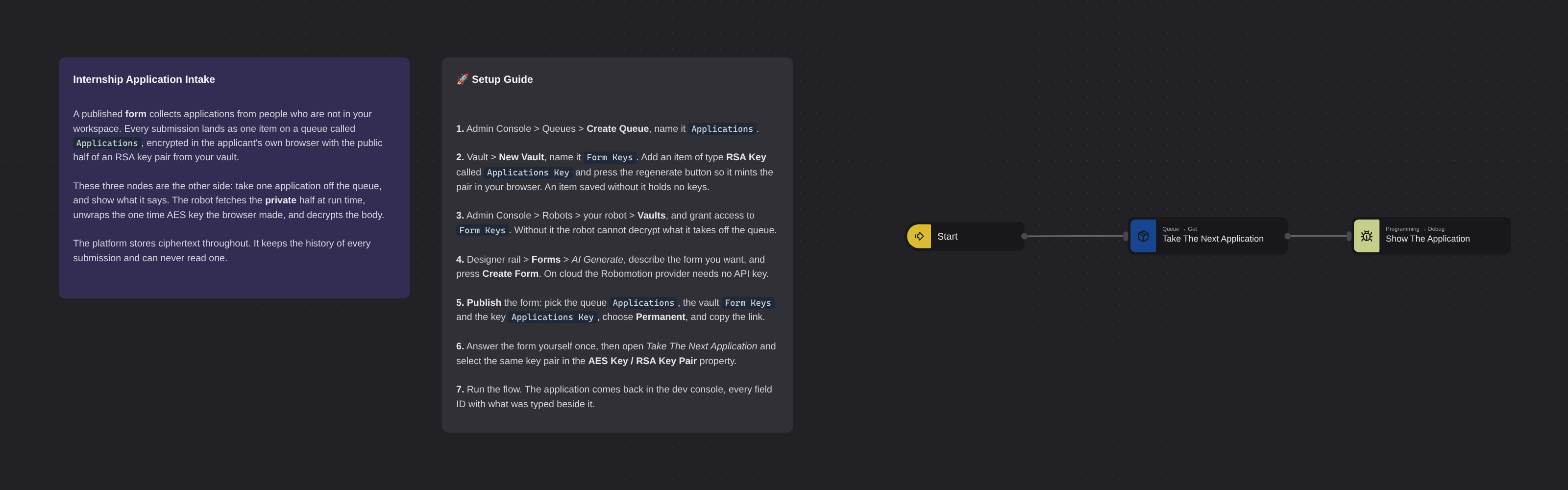
Collect work from people who are not in your workspace. A published Robomotion form is a public web page with its own link: whoever answers it needs no account and installs nothing, and every submission becomes one item on a workspace queue. Submissions are encrypted in the visitor's own browser with the public half of an RSA key pair from your vault, so the platform stores the history of every application and can never read one. Three nodes take the next application off the queue, decrypt it with the private half, and show every field the applicant filled in.
Internship Application Intake
Most automation starts with something a person outside your company has to send you: an application, a claim, a request, a file. A Robomotion form is how you collect it, and what happens to it afterwards is the interesting part.
A form is a public web page with its own link. Whoever answers it needs no account, installs nothing, and never sees your workspace. It does not email you either: every submission becomes one item on a workspace queue, which is a thing your robots already know how to work. This template is the other side of that handoff — three nodes that take the next application off the queue and show you exactly what it says.
What makes it worth understanding is the key. When you publish a form you point it at a queue and at an RSA key pair from your vault. The public half goes out with the page and locks each submission in the visitor's own browser, with a one time AES key that is itself wrapped with your public key. The private half never leaves the vault. So what the platform stores is ciphertext: the Admin Console can tell you an item arrived, what its status is and how many attempts it has had, and it cannot tell you a word of what the applicant wrote.
What Internship Application Intake can do
- Collect submissions from anyone with the link, with no account and nothing to install
- Take one application at a time, marked In Progress, so no second robot is handed the same one
- Decrypt it with a private key that never leaves your vault
- Read every field by the ID the form gave it, including file uploads
- Keep the whole history in the Admin Console without exposing a single answer
- Answer once and close, or stay open forever, depending on the link you publish
Behind the scenes
Take The Next Application asks the queue for one item and decrypts it in the same call. Its Start Transaction option marks the item In Progress as it hands it over, which is what lets you run this on more than one robot without two of them working the same application.
The property that decides whether anything comes back at all is AES Key / RSA Key Pair, and the two are not interchangeable. An AES key is one key both ways, which is right for items a flow put on the queue itself with Add Item. A form is the other case entirely: locked by a public half out on the internet, opened by a private half in here. Point this node at the same key pair the form was published with.
Show The Application prints the decrypted object. Every key is a field ID from the form, so first_name, email and motivation are whatever the form called them — the Code view in the form builder is where you read them off. A file field is not encrypted with the rest: it uploads on its own and the field ends up holding the address it was stored at, so resume arrives as a link rather than a file.
Publishing mints an instance, and a form can have several. A permanent link stays open and takes as many answers as arrive. A disposable link deactivates itself the moment the first one lands, which is one link per person and no way to answer twice.
Setup Guide
- Create the queue. Admin Console > Queues > Create Queue, name it
Applications. A name and a description, and nothing else to decide. - Create the vault and the key pair. Vault > New Vault, name it
Form Keys. Add an item of type RSA Key calledApplications Keyand press the regenerate button so it mints the pair in your browser. An item saved without pressing it holds no keys, and a form published against it cannot encrypt anything. - Give the robot the key. Admin Console > Robots > your robot > Vaults, and grant access to
Form Keys. Without this the robot cannot decrypt what it takes off the queue. - Build the form. Designer rail > Forms > AI Generate, describe the form you want in a sentence, and press Create Form. On cloud the Robomotion provider runs on workspace credits, so there is no API key to set up first.
- Publish it. Publish asks for exactly three things and refuses without them: the queue
Applications, the vaultForm Keyswith the keyApplications Key, and a link type. Choose Permanent and copy the link. - Answer it once, as an applicant would.
- Point the node at the key. Open Take The Next Application and select the same key pair in the AES Key / RSA Key Pair property.
- Run it on a robot. The application comes back in the dev console: every field ID from the form, with what was typed beside it.
Customization
Start it on a submission, not by hand. Inject is there so you can run it while you are building. In production, put a queue trigger on Applications so a submission starts the flow by itself.
Record what happened. Add Update Item State after the work, with the item ID this flow already puts on msg.item_id, and the Admin Console keeps Successful or Failed against every application.
Fetch the file. resume is a URL. An HTTP Request node downloads it when you need the bytes, and the PDF package will read it.
Work the whole queue. Wrap the two nodes in the Label → body → Go To loop and add a Switch on whether an item came back at all, and one run drains everything waiting.
Collect something else entirely. Nothing here is about internships. Change the prompt in AI Generate and the same three nodes read expense claims, support requests or supplier onboarding forms.
Give one link to one person by publishing a disposable instance instead. It answers once and closes itself.
Requirements
- Core nodes only; no packages to install
- A workspace queue named
Applications - A vault with an RSA Key item, and a robot granted access to that vault
- A published form pointed at that queue and that key pair
More Productivity templates
See all 4 →- TranslatorTranslates text from one language to another using Google Translate. Text can be provided directly or read from a file, and the result can be displayed in a dialog or saved to a text file.
- Web Element To PDFConverts any web element to a PDF file by injecting the html2pdf.js library into the page and rendering the selected element based on its XPath selector.
- Convert Excel Document to CSV FileConverts an Excel spreadsheet to a CSV file on your file system. Supports configurable separator characters and optional sheet selection via subflows for reading Excel data and writing CSV output.