Shipment Status Report
The flow
Overview
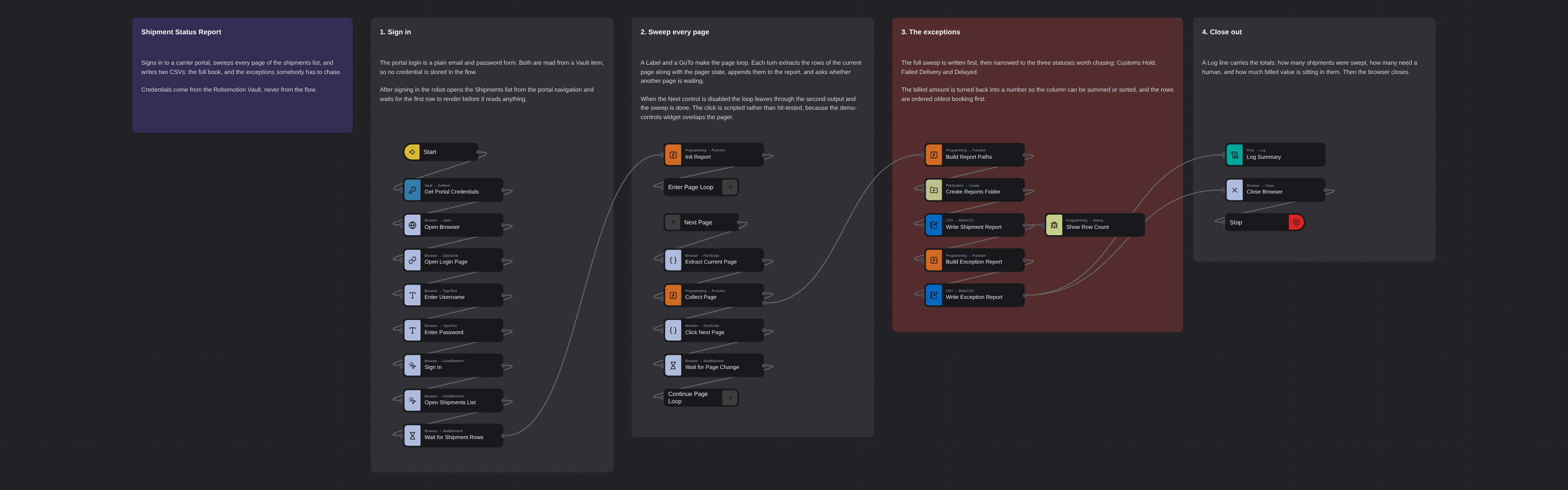
Signs in to a carrier portal and sweeps every page of the shipments list into one report, then narrows that sweep to the shipments that need a person. Reads the login from the Robomotion Vault, walks the pager with a Label and a GoTo until the Next control is disabled, and writes two CSVs: the full book, and an exceptions file covering customs holds, failed deliveries and delays, oldest booking first, with the billed value stuck in each one. Closes with a Log line carrying the counts and the total.
Shipment Status Report
Somebody opens the carrier portal every morning to find the shipments that are stuck. The list runs to hundreds of rows across a dozen pages, and the answer they actually need is the short list at the end: which ones need a person today, oldest first, and how much money is sitting in them.
This flow does the whole sweep and then writes that short list.
It runs against SlugExpress, a fictional carrier portal used for training. All data is synthetic.
What it produces
Two files in the Reports folder of your home directory:
shipment-report.csv— every shipment on every page, exactly as the portal lists it.shipment-exceptions.csv— only the shipments with a status worth chasing (Customs Hold, Failed Delivery, Delayed), sorted oldest booking first, with the billed amount as a number so the column can be summed or sorted in a spreadsheet.
A Log line closes the run with the shipment count, the exception count and the billed value held up in them.
How it works
1. Sign in
The portal login is a plain email and password form, and both are read from a Vault item rather than stored in the flow. After signing in the robot opens the Shipments list from the portal navigation and waits for the first row to render before it reads anything.
2. Sweep every page
A Label and a GoTo make the page loop. Each turn runs one script that extracts the rows of the
current page and the pager state in a single pass, so the flow always knows whether another page is
waiting without a second round trip.
The Collect Page function has two outputs: one continues the loop, the other leaves it. When the
Next control is disabled — or the page count is reached — the sweep is done and the flow exits
through the second output.
Two details worth copying into your own scrapers:
- The Next click is scripted, not hit-tested. The portal's fixed demo-controls widget overlaps
the pager, so a real click can be swallowed by it. Calling
.click()in the page bypasses that. - The wait after the click is for the next page indicator specifically, built as an XPath naming the page number it expects. Waiting for "a table row" would pass instantly against the page it just left.
3. The exceptions
The full sweep is written first, so nothing is lost if the narrowing logic changes later. Then the
rows are filtered to the three watched statuses, the billed euro string is parsed back into a number,
and the result is sorted by booking date — keyed as yyyy-mm-dd so a plain string compare puts the
oldest first.
4. Close out
The summary is logged, the browser closes, and the flow stops.
Running it
Before the first run, create a Vault item holding the portal email and password, and point the
Get Portal Credentials node at it. The flow reads username and password from that item.
Related
Bulk Shipment Tracking Sweep solves a neighbouring problem the opposite way: no login, a fixed list of tracking numbers, and eight parallel workers pulling from a shared queue. Reach for that one when the work is a known list and throughput matters; reach for this one when you have to sign in and walk a paginated list you do not know the length of.
More web automation templates
See all 20 →- Any browser: Edge and FirefoxA browser flow built from Web Automation nodes that signs in to Acme ERP Web and searches the customers, run on a robot in Edge and then in Firefox, with only the Browser Type changed.
- Headless ChromeThe Web Inspector lesson's flow, run first headed so you can watch it, then headless with Record Session, so the robot keeps a video of the run nobody saw.
- Payment Run with Hold ReportRuns the weekly vendor payment run in a SAP-style ERP and then accounts for every bill it refused to pay. Signs in with credentials read from the Robomotion Vault, proposes the bills due within seven days, confirms the run so a journal entry is posted per document, and verifies the posted summary against the proposal before going on. Then it opens the bills list, filters to the blocked bills, and reports each one with the reason it is on hold - a pending goods receipt, a quantity or price mismatch against the purchase order, or a missing PO reference. Writes a two-section CSV covering what was paid and what was held back, with the value held back totalled.
- Bank ReconciliationTakes the payments and receipts the ERP could not reconcile and confirms each one against the real bank statement. It pulls the ERP's flagged paid-bill exceptions and open invoices awaiting cash, then signs in to the bank, searches the operating account by reference and reads what actually settled - quantifying the four ways money and ledger drift apart: a missing payment, a transposed amount, a double payment and unapplied cash. Writes a reconciliation CSV. The story is evidence: the ledger raises the question, the bank statement answers it, and every discrepancy comes out with a number attached.
- Logistics Exception CenterBuilds one worklist of every active delivery exception from the carrier, then dedupes it against the systems that may already be handling it - the mailbox that was notified, and the help desk where a ticket may already exist. Joining the three on the tracking number tells the robot which exceptions were mailed, which already have a ticket, and which nobody has picked up yet. Writes a consolidated exception CSV. The story is consolidation: three systems each hold part of the picture, and the robot joins them so a stuck shipment is neither missed nor double-worked.
- Monday Morning BriefingOne robot, every system, the whole week's work on a single page. It signs in to the CRM, the mailbox, the ERP, the carrier and the help desk in turn, reads the one number that matters from each - duplicate contacts, invoices to post, ledger exceptions, stuck shipments and refund requests - and writes a consolidated briefing with a total across all five. The story is reach: the back-office queues a team would open one browser tab at a time, gathered into one report before anyone has had coffee.